
Opia documentation
Back up and compare configurations
Back up device configurations and review change evidence over time.
Applies to Opia 26.8.1Opia connects to an enabled Cisco IOS or IOS-XE device over SSH and collects its running configuration. Successful backups are retained as evidence that can be reviewed and compared over time.
Run a manual backup
- Confirm the device has a working credential profile and passes Test Connection.
- Open Backups and choose the device or enabled-device scope.
- Start the backup.
- Follow progress in Operations → Activity Runs.
- Open the completed history entry to review its timestamp, status and comparison information.
Schedule backups
Create a Backup activity in Automation, choose the target devices and schedule, then enable it. The Opia Agent must be healthy when the activity is due. Licence and entitlement checks are applied when work is submitted and again when it executes.
Review backup history and differences
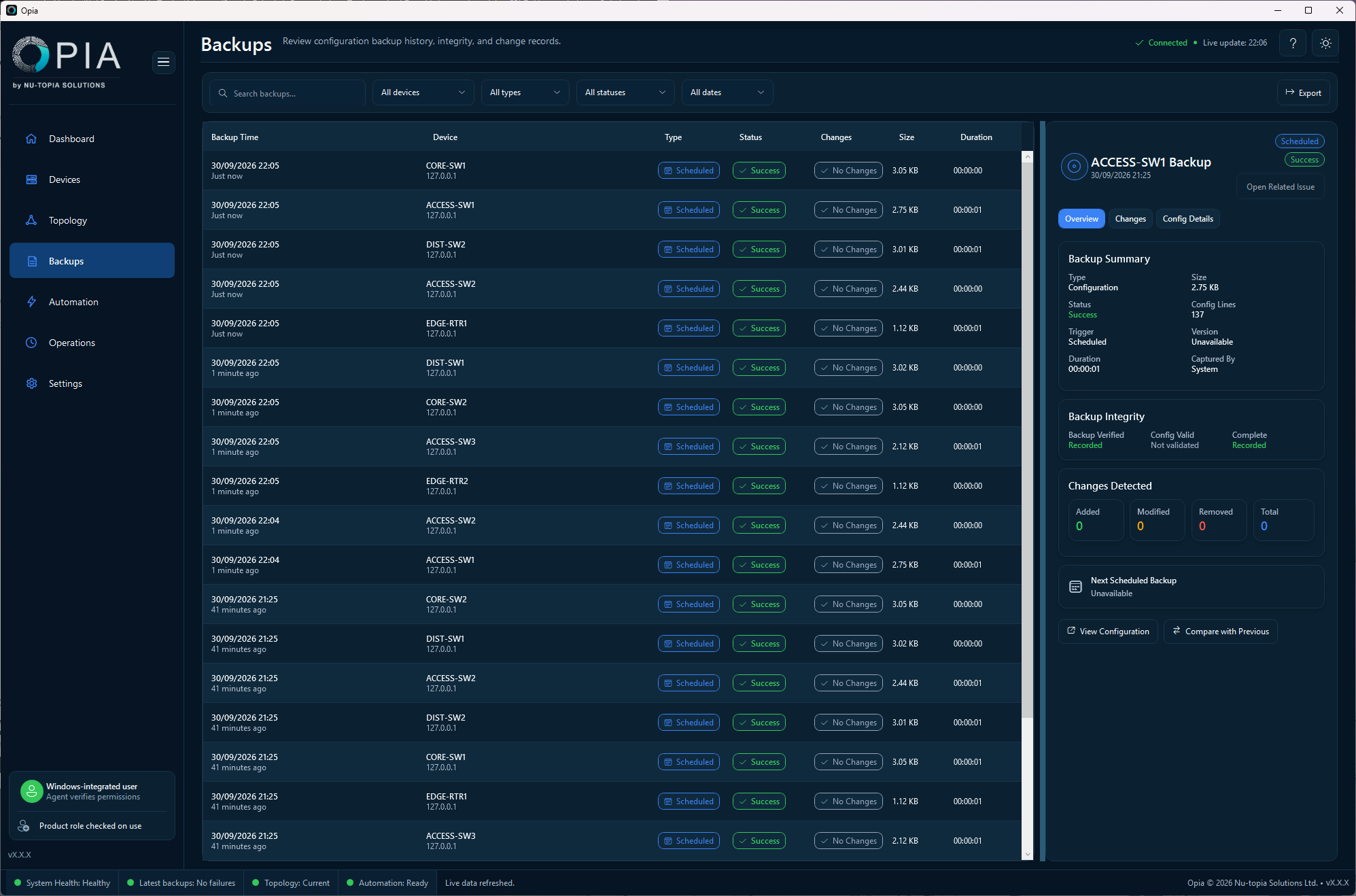
History records successful and failed attempts. Once previous successful content exists, Opia can show whether the configuration changed and provide a line-by-line comparison. Treat a difference as evidence for review; it is not automatic approval that the change was expected.
The first successful backup establishes a baseline and cannot show a change against an earlier Opia snapshot.
Failures, reruns and cancellation
Typical failures include unreachable devices, authentication or enable-mode denial, a changed SSH host key, incomplete command output, storage problems, an unavailable Agent or a licensing block. Opia records the failure without replacing the last known-good backup.
Eligible failed operations can be rerun from Operations. Where supported, queued or running activity work can receive a cancellation request; execution may take a short time to reach a safe stopping point.
Storage and retention
The effective backup location is shown in Settings. The machine-wide default is under %ProgramData%\Opia\Data\backups. Choose retention settings that match your capacity and recovery requirements. Repair, upgrade and routine uninstall preserve the backup root.
Credential data is not part of a backup
Normal Opia backups do not include the credential vault, private keys, passwords or other stored secret material. Copying Opia ProgramData to another computer is not a supported credential-restore method.