
Opia documentation
Explore observed and inferred relationships
Explore observed and inferred physical and logical network relationships.
Applies to Opia 26.8.1Evidence, not certainty: CDP and LLDP links are directly observed protocol evidence. Inferred links are correlations from other collected evidence and should be reviewed before they are used to support a network change.
Build a useful map
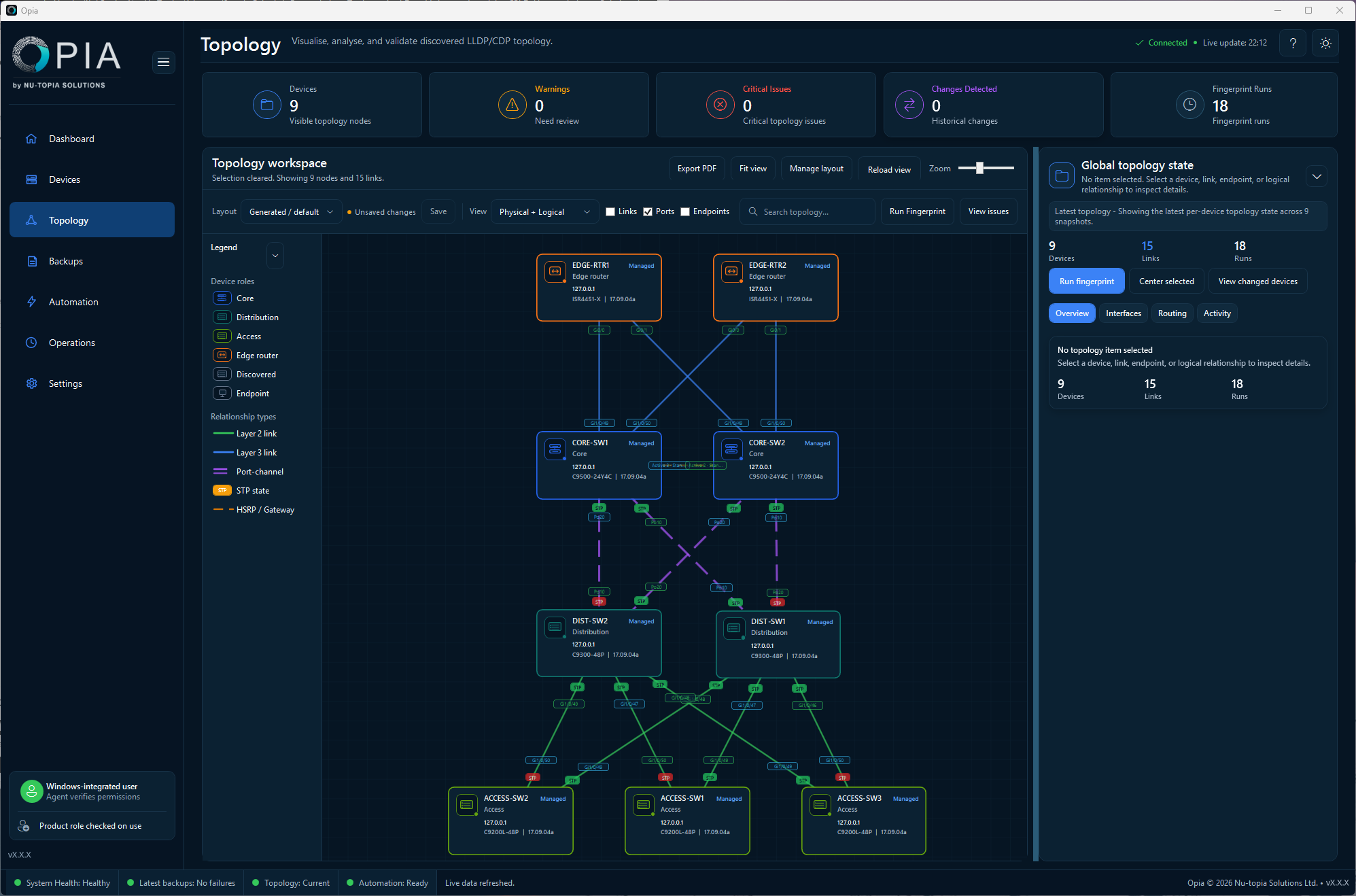
Run current fingerprint, inventory and topology activities across the devices you want to represent. The map combines compatible neighbour observations and other evidence into a topology snapshot. If part of the environment has not been collected, the map will also be incomplete.
Views and relationship types
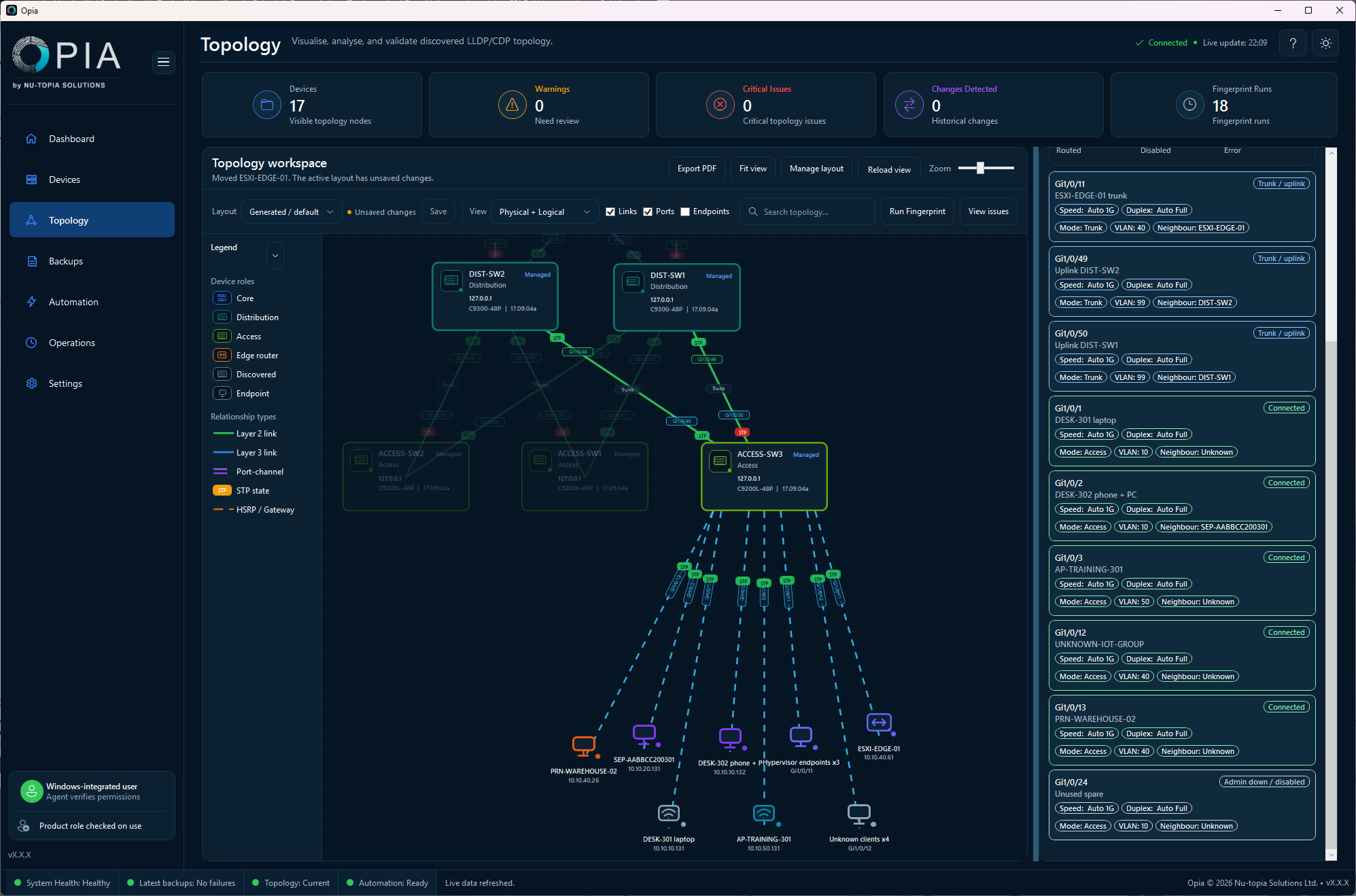
- Physical focuses on physical, access, trunk and port-channel connectivity.
- Physical + Logical adds HSRP and gateway overlays to the physical connectivity. VLAN, routed and routing-adjacency context remains available where collected evidence and display filters support it.
- Observed links show their source protocol and known ports.
- Inferred links are visually distinct and include confidence/evidence information.
- Parallel links can be grouped while retaining the individual port relationships.
- Port channels present the aggregate relationship while retaining member evidence where available.
HSRP and STP
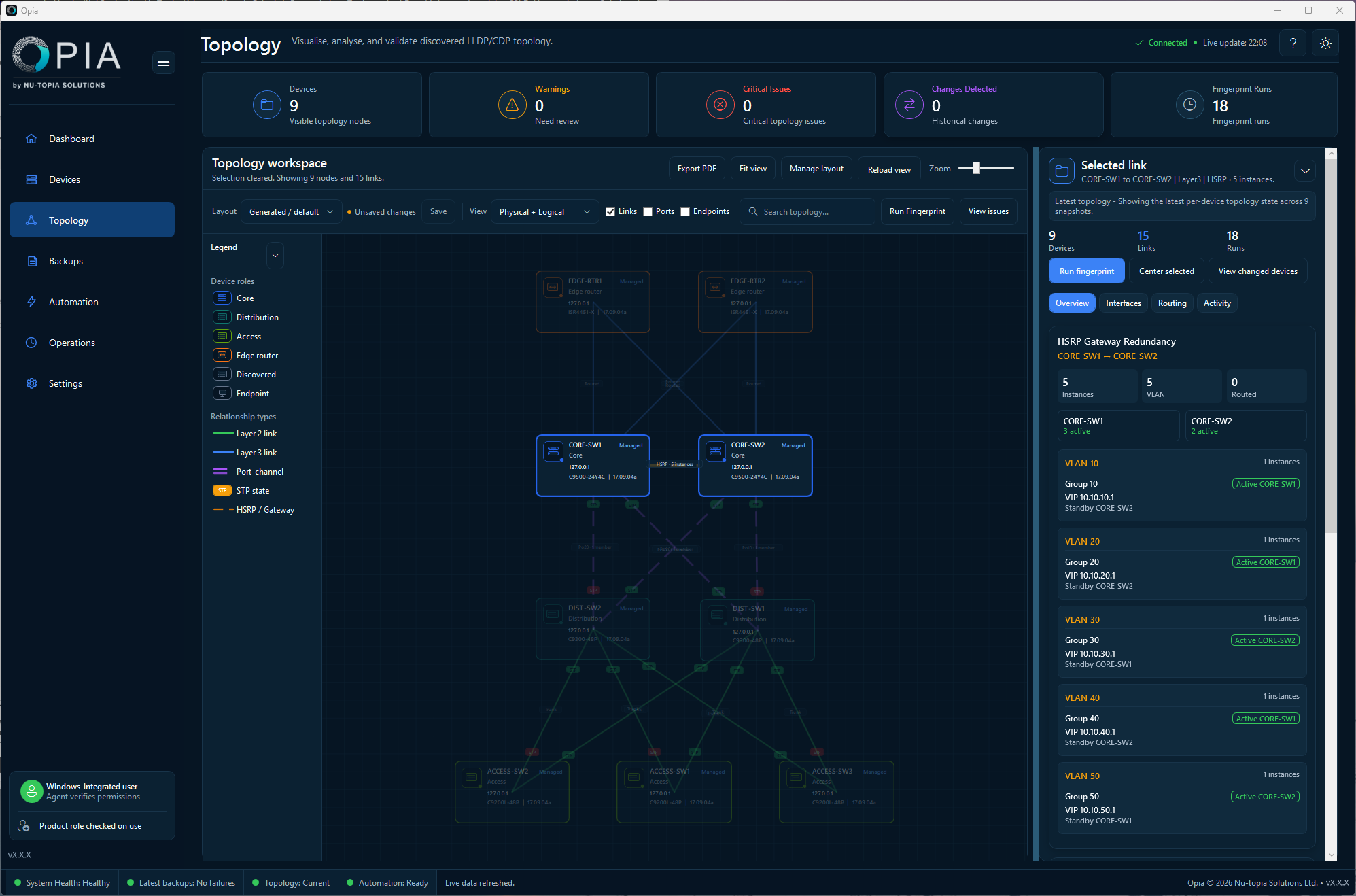
Where HSRP evidence is available, Opia can show Active and Standby peers, group, interface/VLAN context and the virtual IP. Unresolved peers remain unresolved rather than being invented.
STP information is summarised as forwarding, blocking, mixed or unknown. Unknown means the evidence was absent, incomplete or could not be correlated; it does not mean the link is forwarding.
Arrange and inspect the canvas
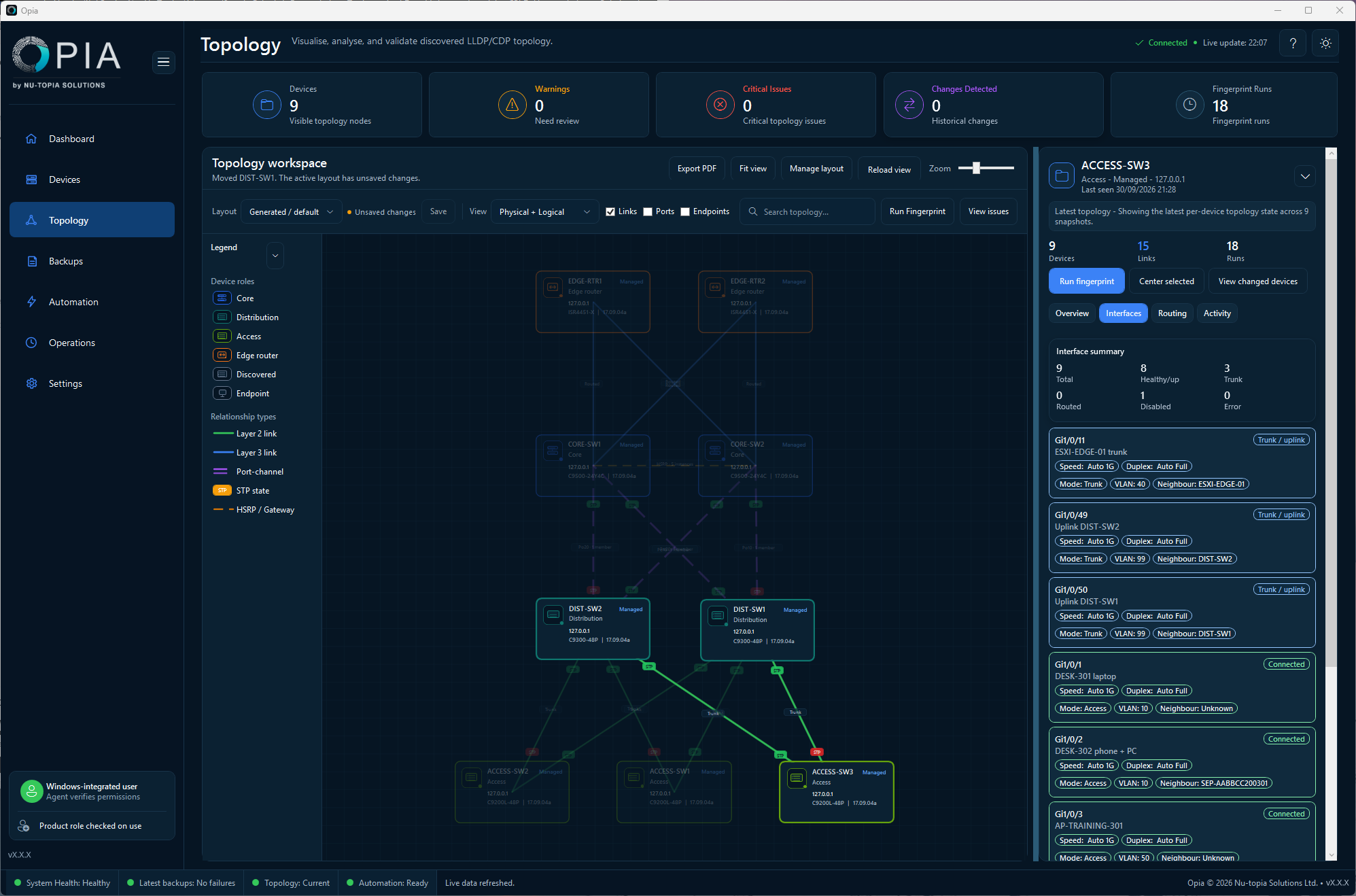
- Select a device, endpoint or link to open the inspector.
- Drag devices to arrange them; the canvas expands to retain moved items.
- Use auto-layout or reset to regenerate positions from the current evidence.
- Save layouts when you want to preserve a presentation.
- Clear filters and hidden-item state if an expected relationship appears to be missing.
Export a topology PDF
- Apply the filters and visibility choices that should appear in the report.
- Select Export PDF.
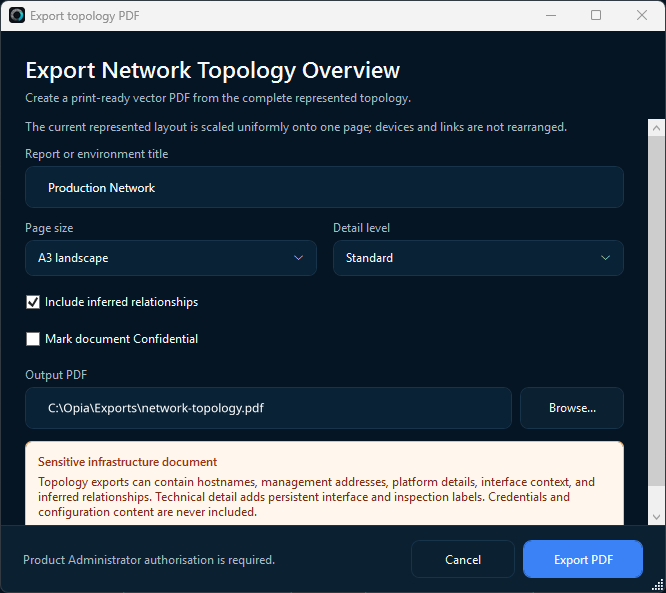
- In Export Network Topology Overview, enter the report title, choose A3 or A4 landscape, select Standard or Technical detail, and choose whether to include inferred relationships and mark the document Confidential.
- Choose the destination and export.
The PDF preserves the represented topology as one uniformly scaled vector page. A3 landscape is the default and is recommended for larger maps. Treat exported topology as sensitive infrastructure information.
Why a map can be incomplete
Common causes include devices not yet collected, one-sided neighbour discovery, CDP/LLDP disabled, command-authorisation failures, truncated output, ambiguous identity, missing MAC/ARP evidence, unsupported commands or stale snapshots. Review the snapshot time and related topology issue before changing device identities.