
Opia documentation
Track activity runs and triage issues
Use Activity Runs for execution and history, and Action Queue for issue triage and follow-up.
Applies to Opia 26.8.1Operations has two tabs: Activity Runs for execution, progress, results and history, and Action Queue for issues, triage and follow-up. Open Activity Runs to monitor running work or investigate a failed run; use Action Queue to review related issues that need attention.
Action Queue
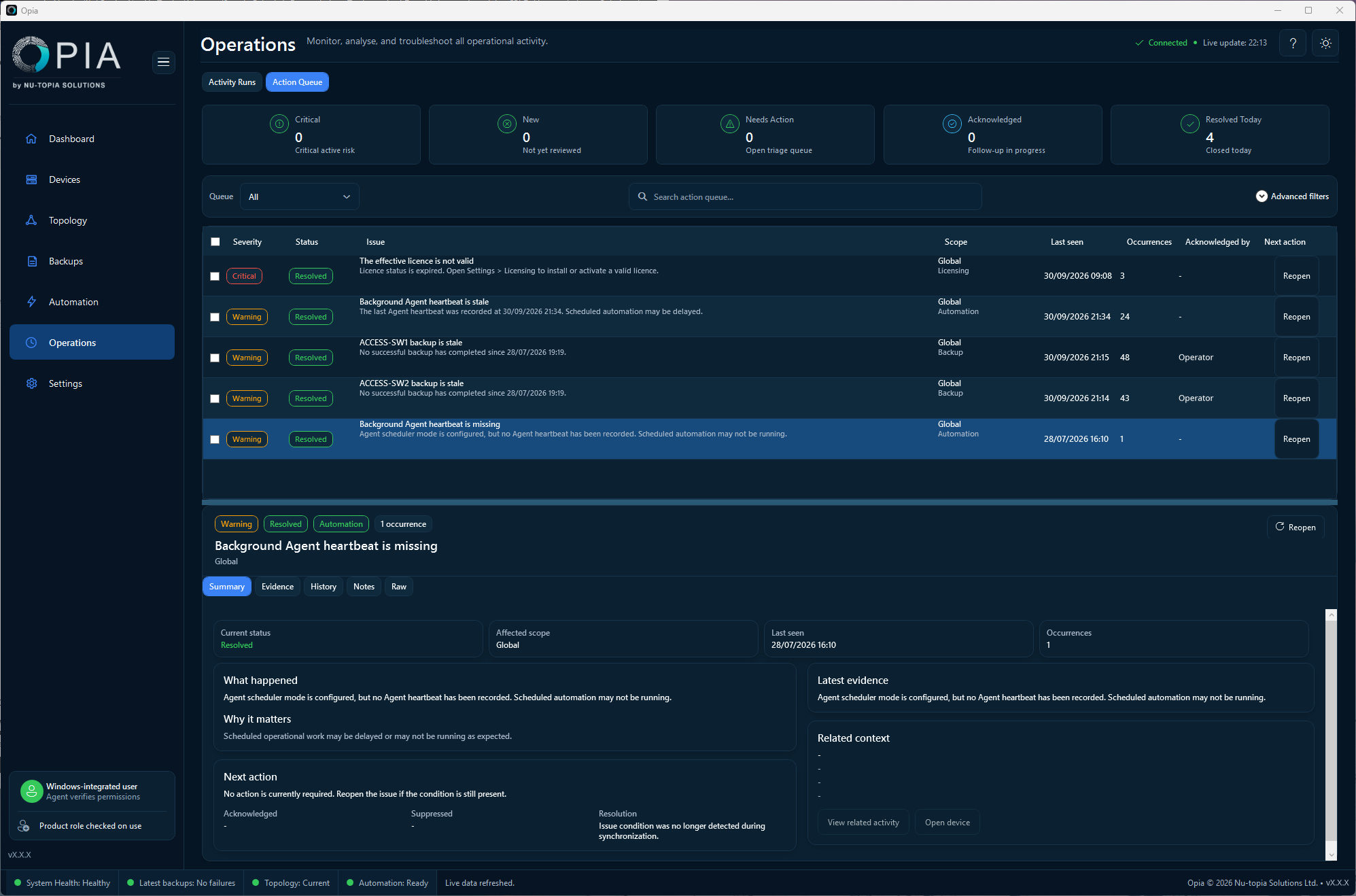
Review issues by severity and status. The Critical, New, Needs Action, Acknowledged and Resolved Today summary cards help focus triage; use the Queue selector, search and advanced severity/source filters to narrow the list.
Select an issue to inspect its Summary, supporting Evidence, History, Notes and Raw details. Review the affected scope, latest evidence and suggested next action. Use the follow-up actions offered for its current state: Acknowledge, Suppress for 24 hours or 7 days, Resolve or Reopen. Add a support-safe note where useful; open the related activity or device when that context is available.
Activity Runs
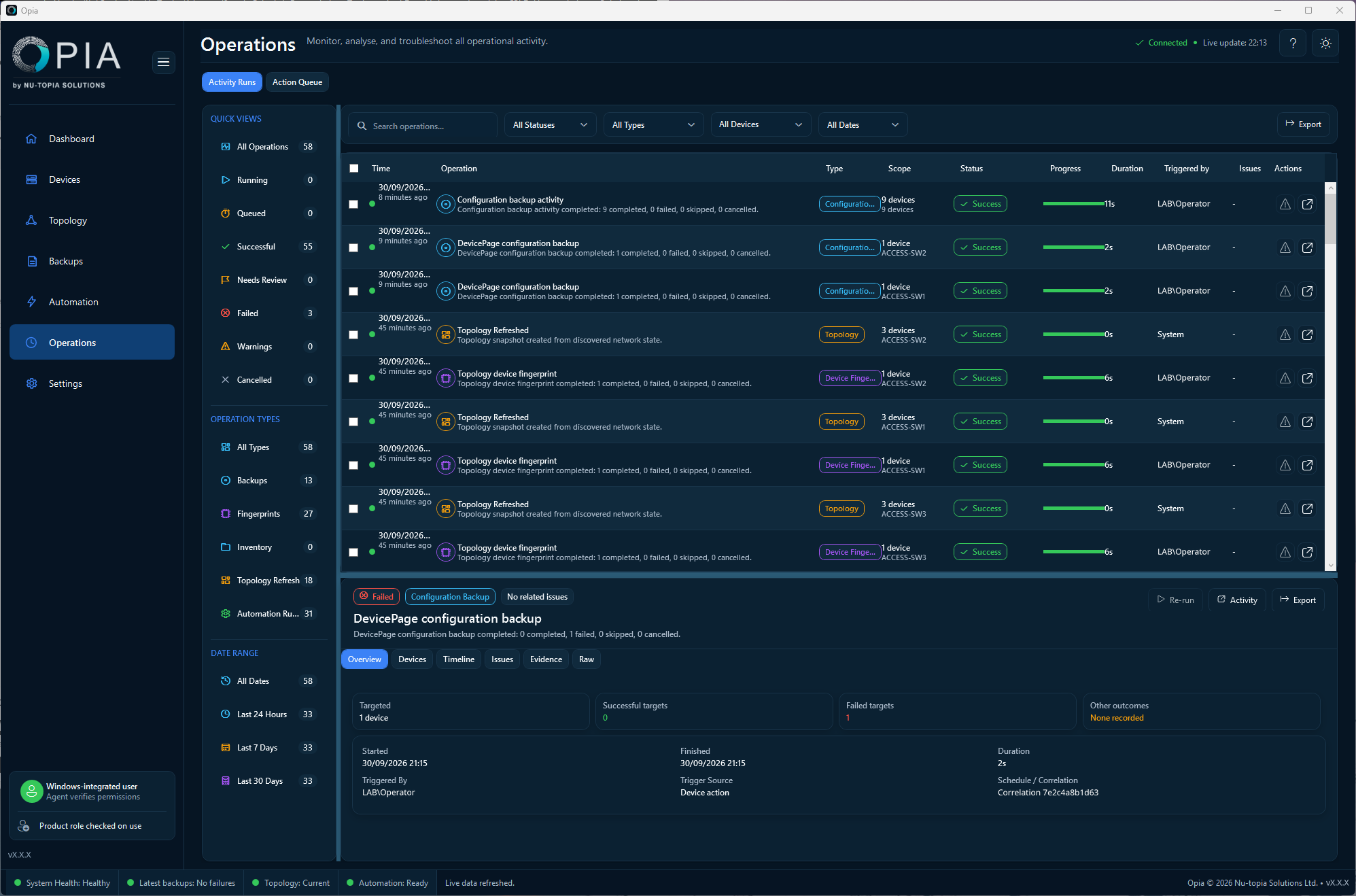
Use Activity Runs to monitor execution and progress and review results and history for backup, fingerprint, inventory, topology, connectivity and automation work. Use quick views such as Running, Queued, Successful, Needs Review and Failed, or filter by status, type, device and date range.
Select an operation to inspect its target, source, timestamps and result in Overview, per-device outcomes in Devices, recorded stages in Timeline, related Issues, supporting Evidence and Raw details. Open a related issue in Action Queue when it needs triage. Rerunning an eligible failed operation creates a new auditable operation; it does not rewrite the original history.
Issue details and follow-up
In Action Queue, issues consolidate findings from Backup, Topology, Device, Inventory, Automation, Licensing and System sources. Severity is Info, Warning or Critical. Available actions depend on the selected issue's state and the current user's permissions.
| Action | When to use it |
|---|---|
| Acknowledge | Record that a New or Active issue is being reviewed. |
| Suppress | Temporarily suppress an unresolved issue for 24 hours or 7 days. |
| Resolve | Mark a known condition handled when evidence supports resolution. |
| Reopen | Return a previously acknowledged, suppressed or resolved issue to active review. |
| Add note | Add concise operational context in Notes; do not include secrets. |
Needs Review
Needs Review highlights completed work with failures or ambiguity that needs a decision. Some change-related issues require a previous successful snapshot; the first backup, fingerprint or topology snapshot establishes a baseline rather than proving a change.
Recommended response
- Open Operations → Activity Runs to check running work or select a failed run.
- Confirm the affected device, activity and time range, then review stages, per-device results and supporting evidence.
- For related issues, open Operations → Action Queue and prioritise Critical and Needs Action findings.
- Inspect the issue summary and evidence; acknowledge the issue and add a support-safe note where useful and available.
- Correct connectivity, credential, licence, Agent or network causes.
- Rerun eligible work and confirm the new result in Activity Runs.
- Resolve the issue in Action Queue only when the evidence supports it.