
Opia documentation
Add devices and manage access safely
Manage device identities and secure access profiles for Opia workflows.
Applies to Opia 26.8.1Devices are the managed network assets Opia connects to. Each enabled device needs a management address and an appropriate credential profile before Opia can run connectivity, backup or collection workflows.
Add a device
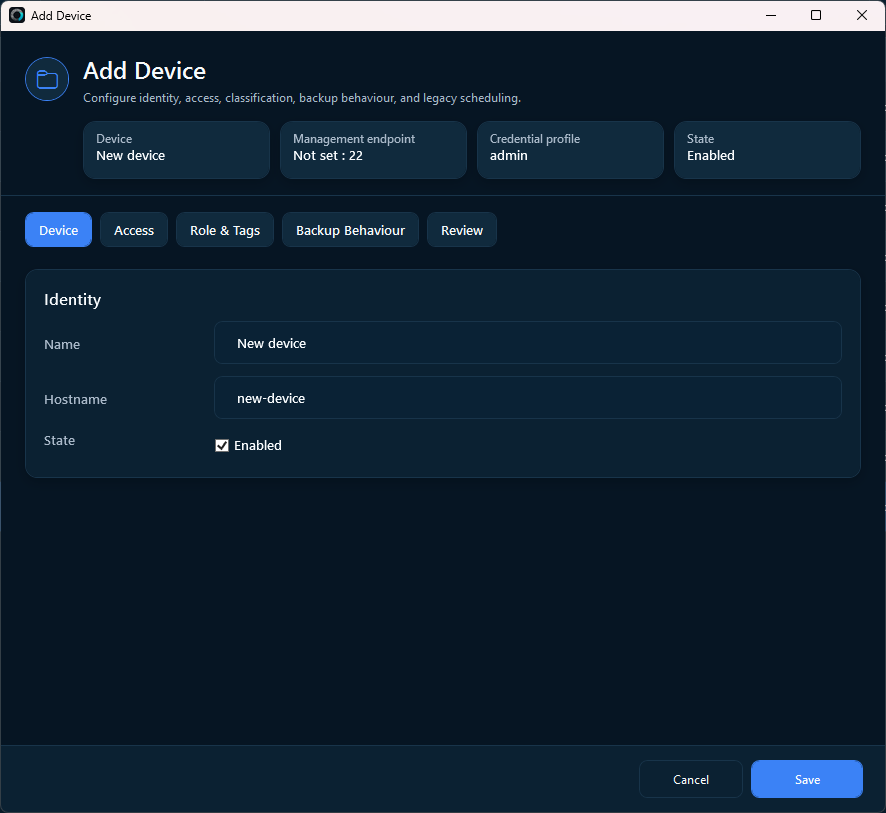
- Open Devices and select Add Device.
- Enter a clear display name and the management IP address or resolvable hostname.
- Select the Cisco platform/driver context shown by the editor.
- Assign a credential profile and, if useful, site, tag or role information.
- Save the device, select it and run Test Connection.
A new device provisionally consumes one Managed Network Unit until trusted fingerprint or inventory evidence verifies its physical chassis or present stack membership.
Import multiple devices
- Select Create Import Template and populate a copy of the template.
- Select Import Devices.
- Review the preview carefully. Opia reports invalid addresses, missing credential matches, duplicates and capacity problems.
- Commit only the rows you expect to add.
Import files contain device information, not passwords or private-key contents. Use export for inventory exchange and review, not as a credential backup.
Create a credential profile
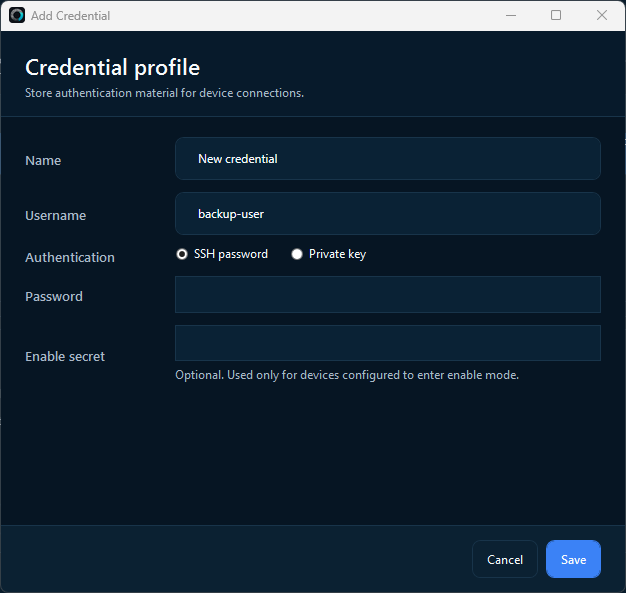
Credential profiles allow multiple devices to use the same authorised access identity without storing plaintext secrets in the operational database.
| Method | Use | Customer guidance |
|---|---|---|
| Password | Username and password | Use a dedicated, least-privilege network account with the read permissions required by the selected workflows. |
| Private key | Username, key and optional passphrase | Import the key through Opia and retain your own approved backup of the original key. |
| Enable mode | Enable secret | Add only where the target device requires privilege escalation for the commands Opia needs. |
Opia protects stored secrets through the Agent. Saved passwords are not displayed back to users, and private-key contents are not exported.
Test connectivity and review SSH host keys
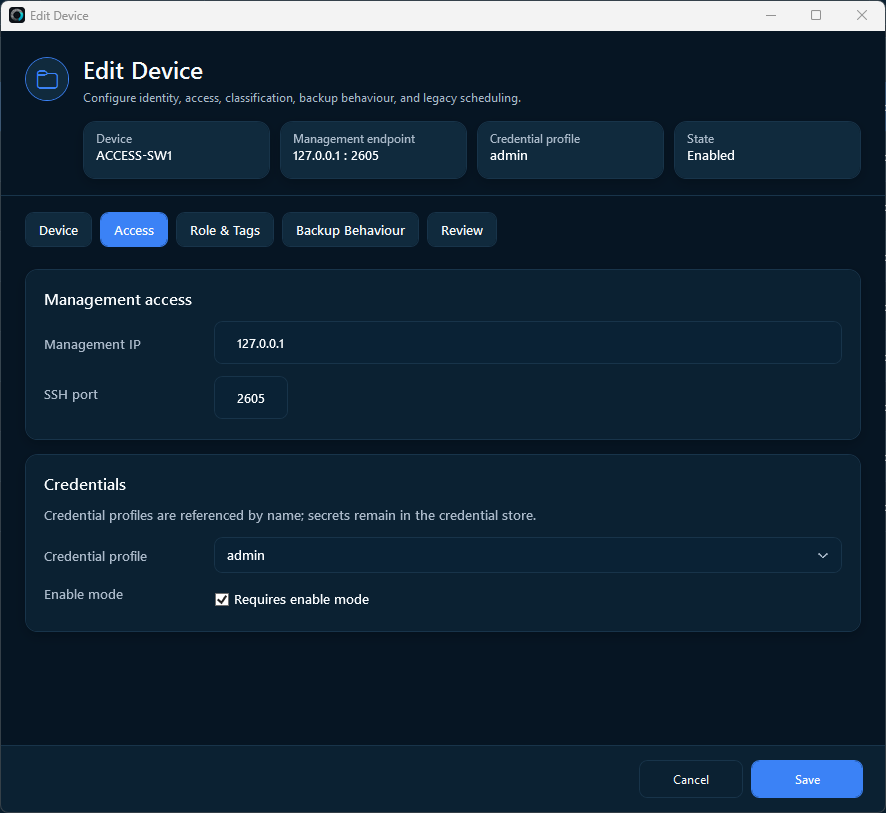
Test Connection checks whether Opia can reach and authenticate to the selected device. Common failures include DNS or routing problems, TCP/22 filtering, incorrect credentials, unreadable key material, insufficient enable privilege, prompt-detection problems or an SSH host-key mismatch.
On first use, Opia can record a new SSH host key under its configured trust-on-first-use policy. If the host key later changes, review the exact algorithm and fingerprint through an independent trusted channel before accepting it.
Device status
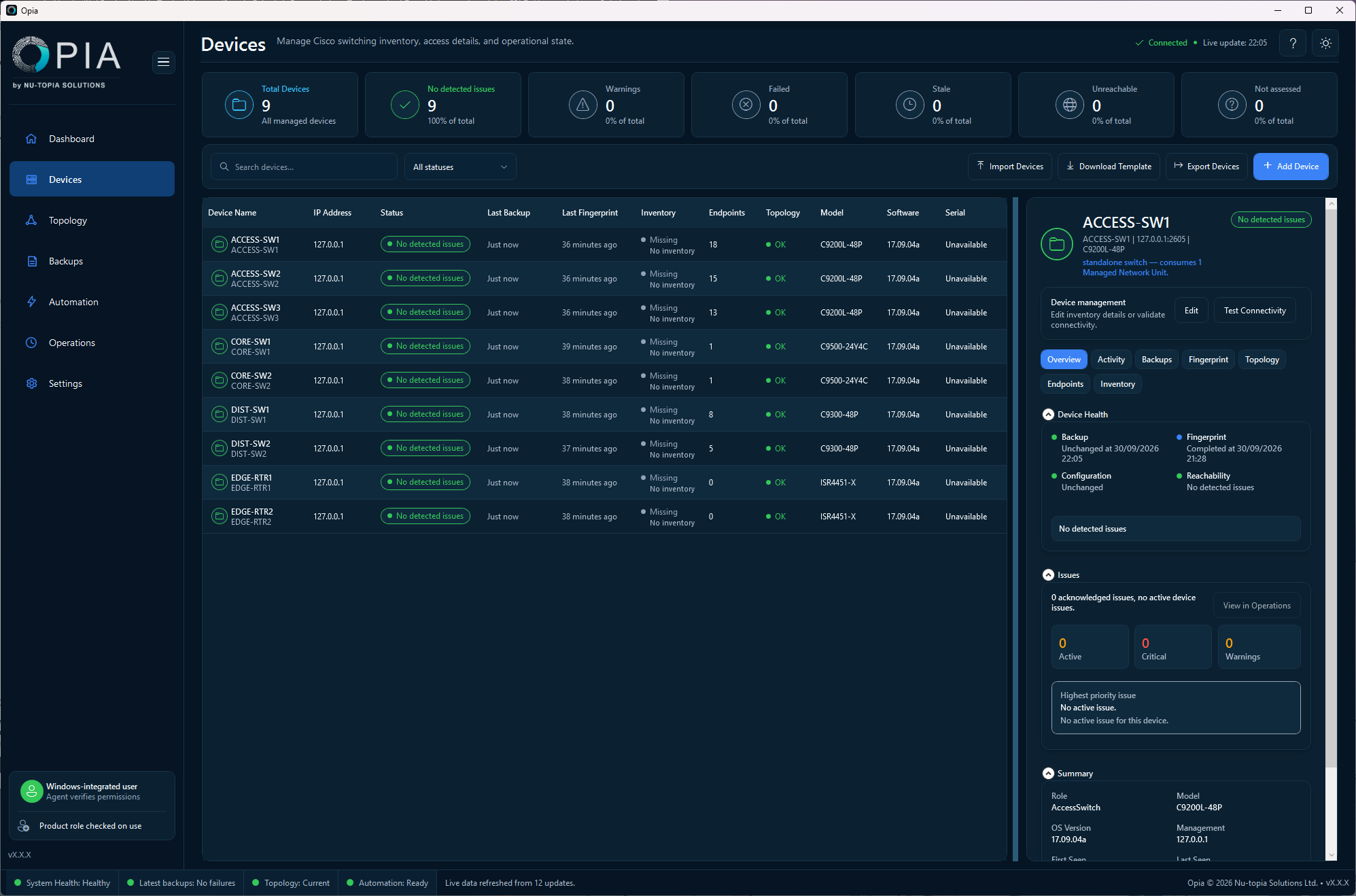
A device can be disabled, online, unreachable, stale or in a warning state. A successful ping alone does not prove that SSH authentication and command collection will work. Fingerprinting can improve device identity using platform, serial and other collected evidence.